3D Viewer Control
Navigating The Scene
Basic camera controls in the 3D viewer:
- Left-click and drag to rotate the view around the subject.
- Right-click and drag to pan the view.
- Scroll the mouse wheel to zoom in and out.

Timeline
The timeline panel at the bottom of the viewer controls playback for every motion and camera you have opened in the scene. Each opened motion or camera appears as its own track/row.
Play, Pause, And Scrub
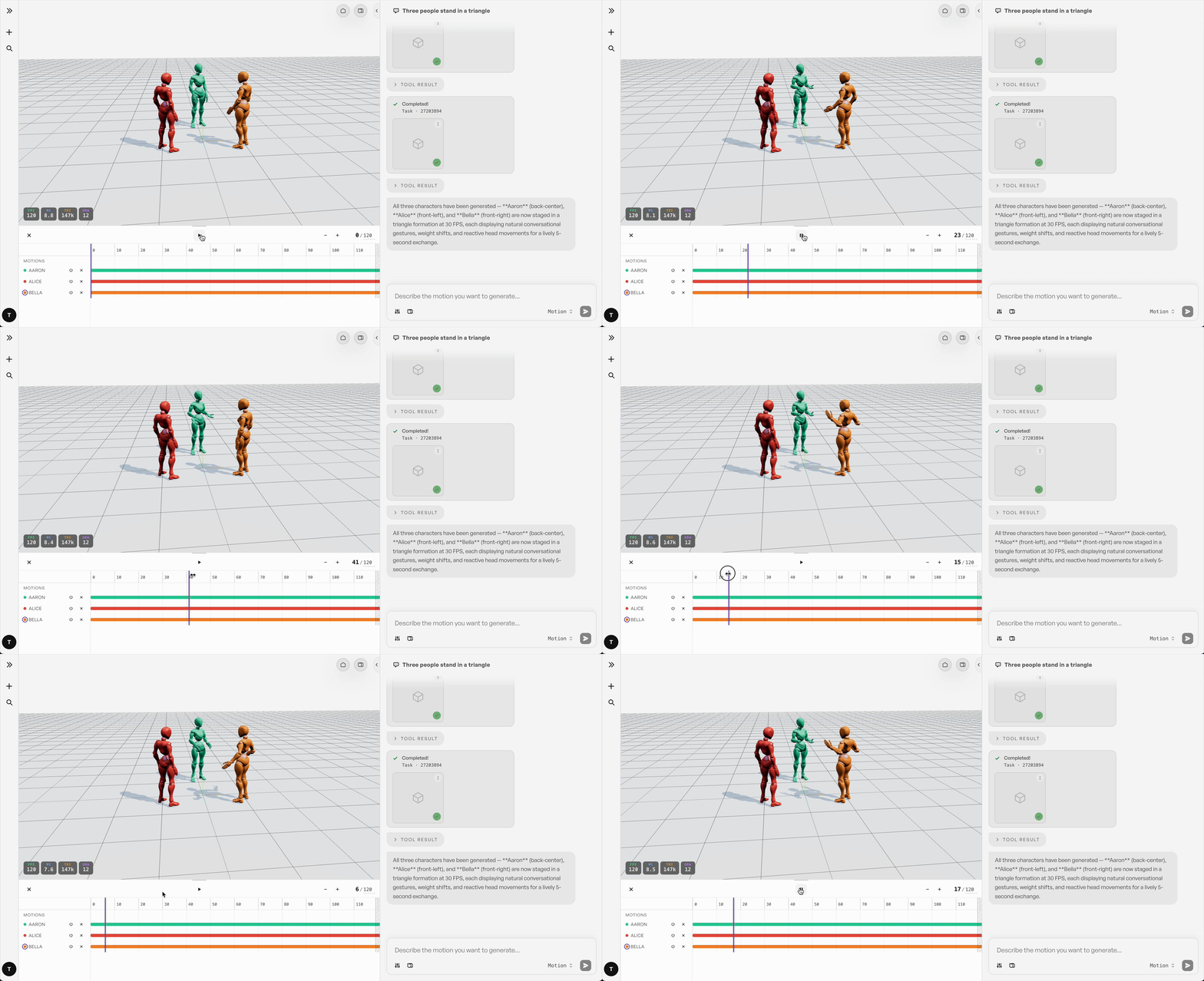
- Click the play/pause button (top-left of the timeline) to start or pause playback of all tracks together.
- Click or drag anywhere on the ruler, or on a track's colored range bar, to scrub — the playhead jumps to that frame immediately.
Muting And Selecting A Primary Track
Each track also has a mute toggle. Muting a track freezes it in place (it stops following the playhead), which is useful when you want to compare or line up other motions/cameras without a track moving.
Clicking a track's color swatch or label sets it as the primary track. When multiple cameras are loaded, the primary camera is the one used as the active viewpoint.
Zooming The Timeline
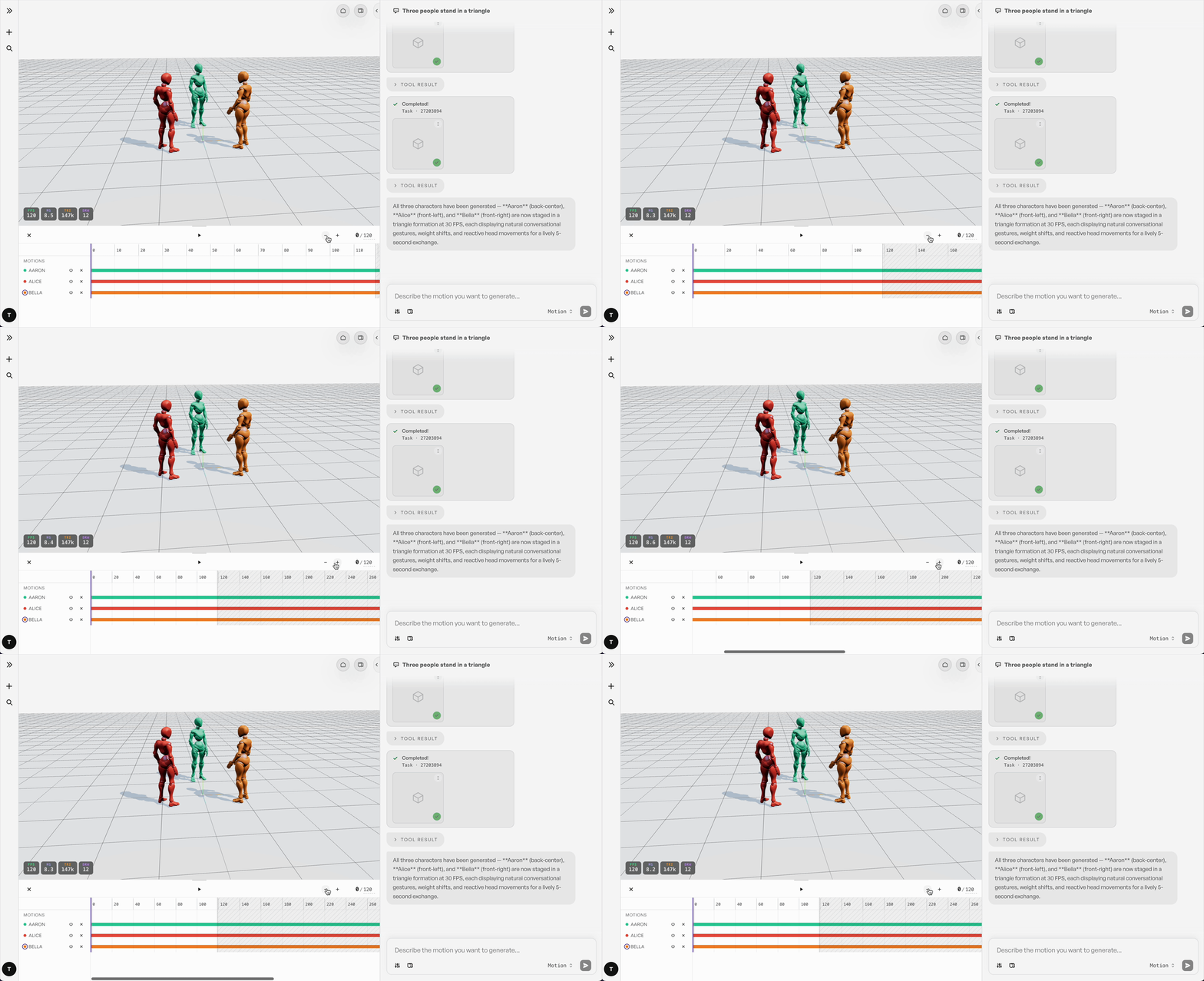
Use the + / − buttons in the timeline header to zoom the time ruler in and out, similar to zooming a timeline in a video editor. Zooming is centered on the frame currently in the middle of the visible timeline, and the ruler keeps extending as you scroll toward its right edge.
Adjusting The End Frame
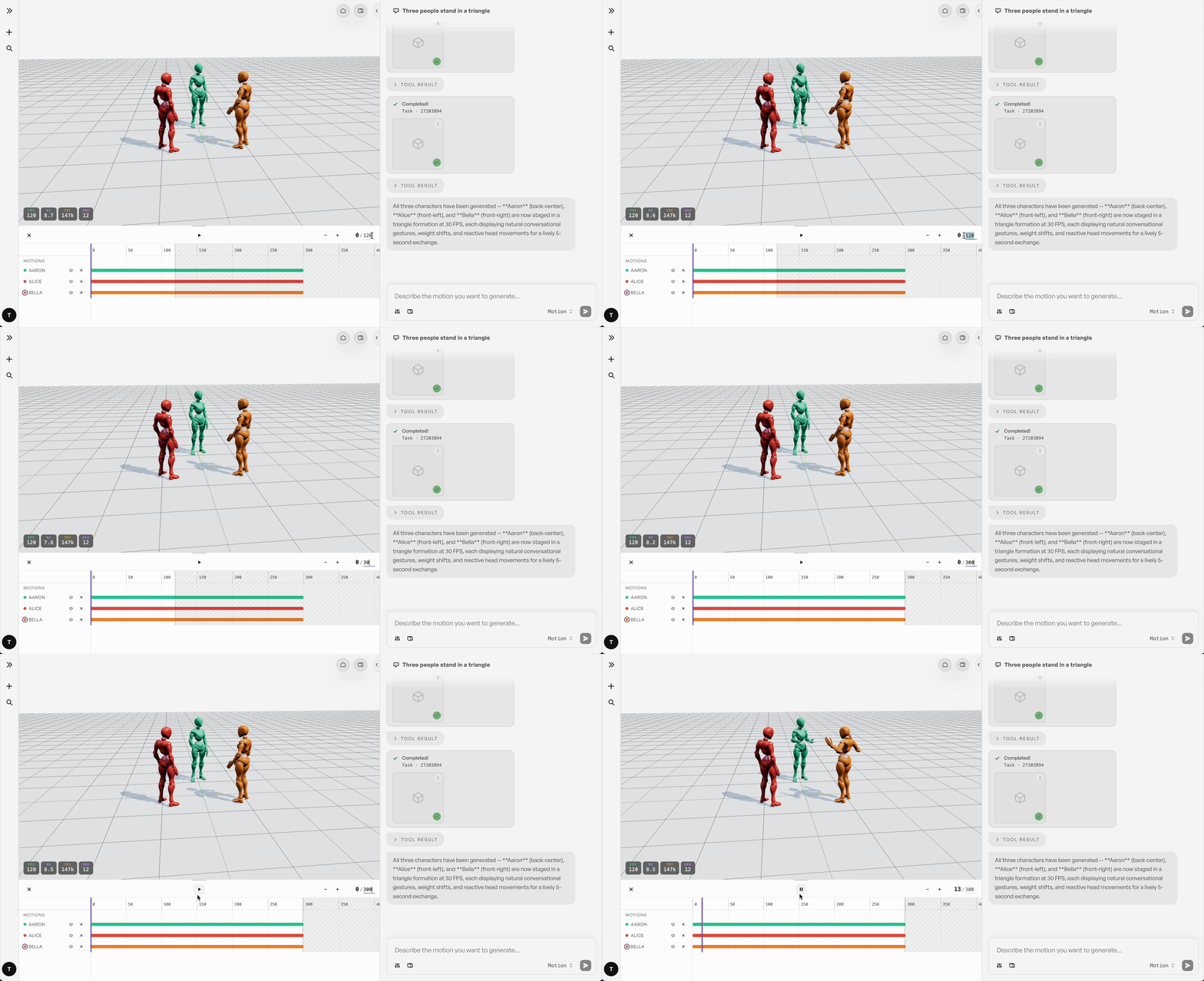
Next to the play/pause button, the frame counter is shown as current / total (e.g. 12 / 120). Click the total-frames number to edit it directly — type a new value and press Enter to change the length of the overall timeline. This sets the end frame for the whole timeline, not for an individual clip; each motion or camera's own length still comes from its source animation.
Resizing The Timeline Panel
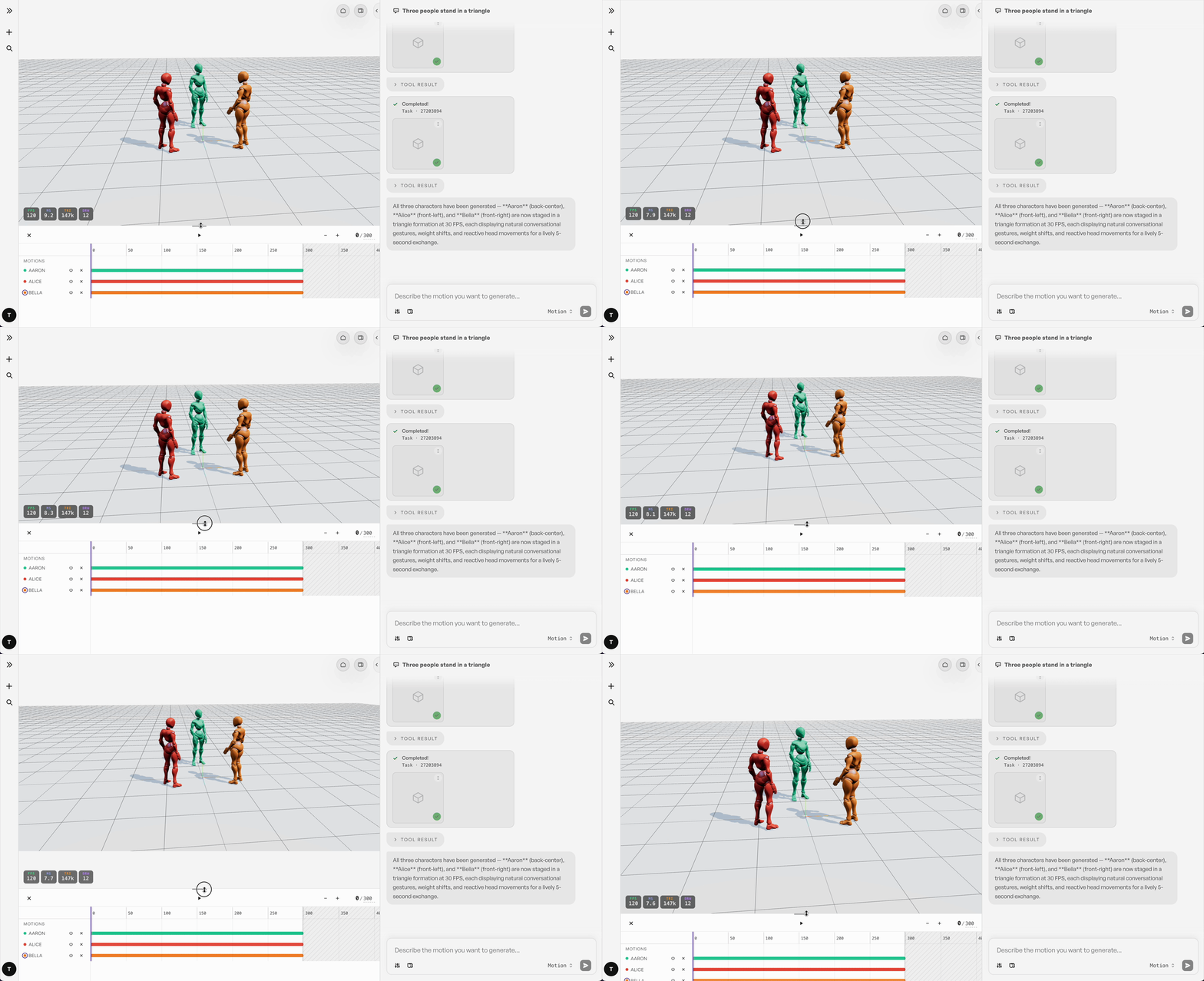
Drag the handle at the top edge of the timeline panel up or down to make it taller or shorter.
Clearing Tracks
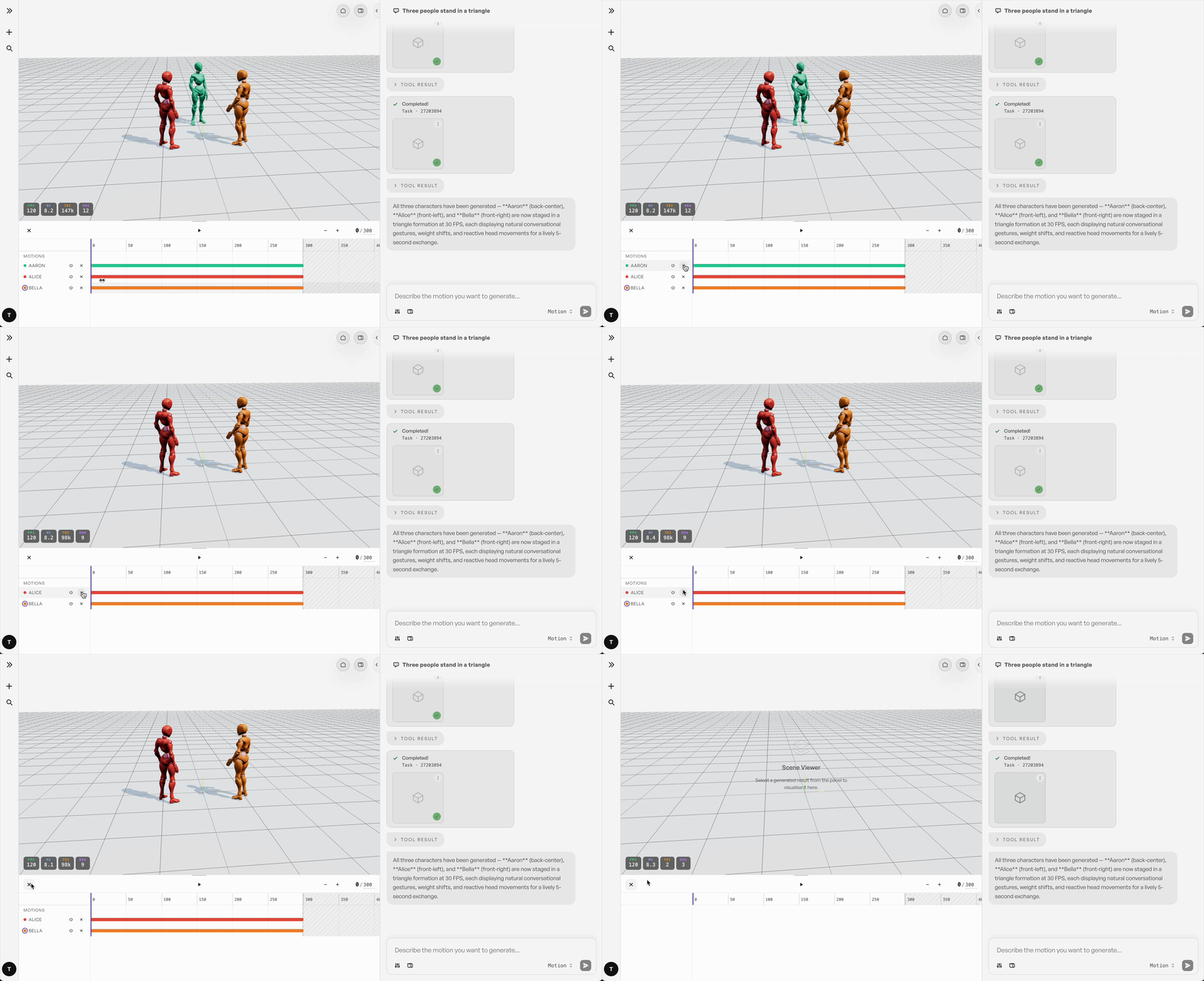
There are two ways to remove content from the timeline:
- Clear all tracks — the "×" button next to the play/pause button removes everything: all motions and all cameras currently loaded in the viewer.
- Remove a single track — each individual track has its own "×" button in its row. Use this to remove just that one motion or camera without affecting the others.