Load A 3D Scene
You can import a 3D environment into the viewer so that generated motions and drawn trajectories can be placed and judged against a real piece of geometry (a room, a runway, a street, etc.) instead of an empty ground plane.
Opening The Scenes Panel
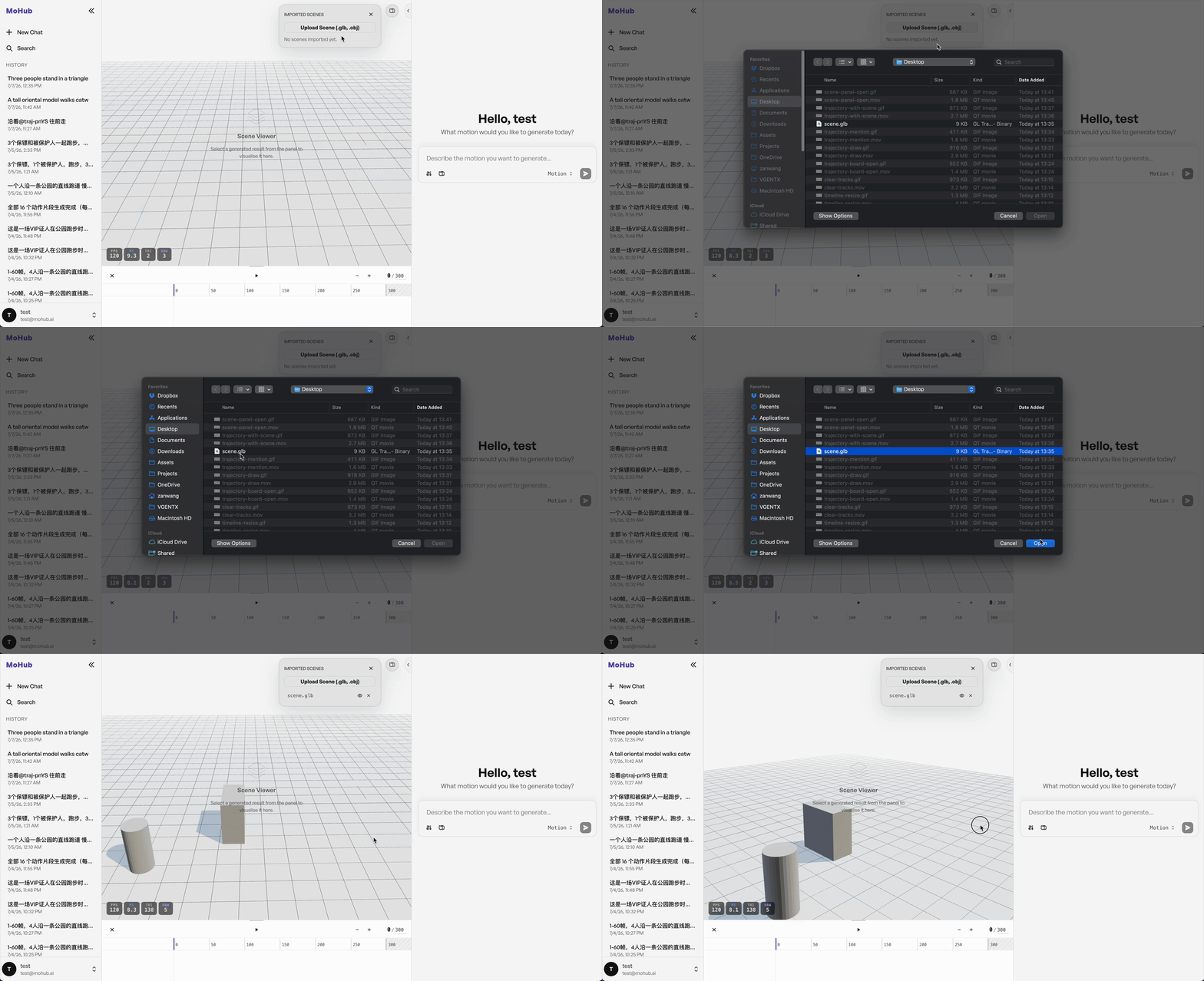
In the top-right corner of the 3D viewer, click the "Imported Scenes" icon. A badge on the icon shows how many scenes are currently loaded. Clicking it expands a small panel where you manage imported scenes.

Uploading A Scene
Inside the panel, click "Upload Scene (.glb, .obj)" and choose a file from your computer.
- Supported formats are
.glband.objonly. Other formats — including plain.gltf— are rejected with an error message. - While the file is being parsed, a small loading indicator appears next to its name.
- Once loaded, the scene is automatically dropped onto the ground plane (its lowest point is aligned to
y = 0) so it sits flush with the floor MOASIS motions are generated on. Its original X/Z layout is preserved, so multiple imported scenes that share the same coordinate origin will line up with each other.
Managing Imported Scenes
You can import more than one scene at the same time. Each imported scene is listed as its own row in the panel, with:
- An eye icon to show or hide that scene in the viewer without removing it.
- A "×" (Remove scene) button to delete it entirely.
Why Load A Scene Before Drawing A Trajectory
When you draw a motion trajectory on the Trajectory Board, the board shows a top-down snapshot of your currently imported (and visible) scenes as its background. This lets you trace a path that actually follows the layout of your environment — for example, walking along a corridor or around an obstacle — instead of drawing blind on an empty grid. For this reason, it's best to import your scene first, then draw trajectories on top of it.