API Key Management
API keys let you authenticate requests to the MOASIS API directly, without going through the web login flow. You can create and manage your keys from Settings → API Keys.
Create API Key
- Open Settings → API Keys and click + New Key.
- Give the key a descriptive Name (e.g. "My Integration").
- Select the Scopes the key should have:
READ— read access to your content and conversations.WRITE— create or modify content, conversations, etc.CHAT— use the Text-To-Motion API to submit prompts and retrieve results.
- Optionally set an Expiry date. Leave it blank for a key that never expires.
- Click Create Key.
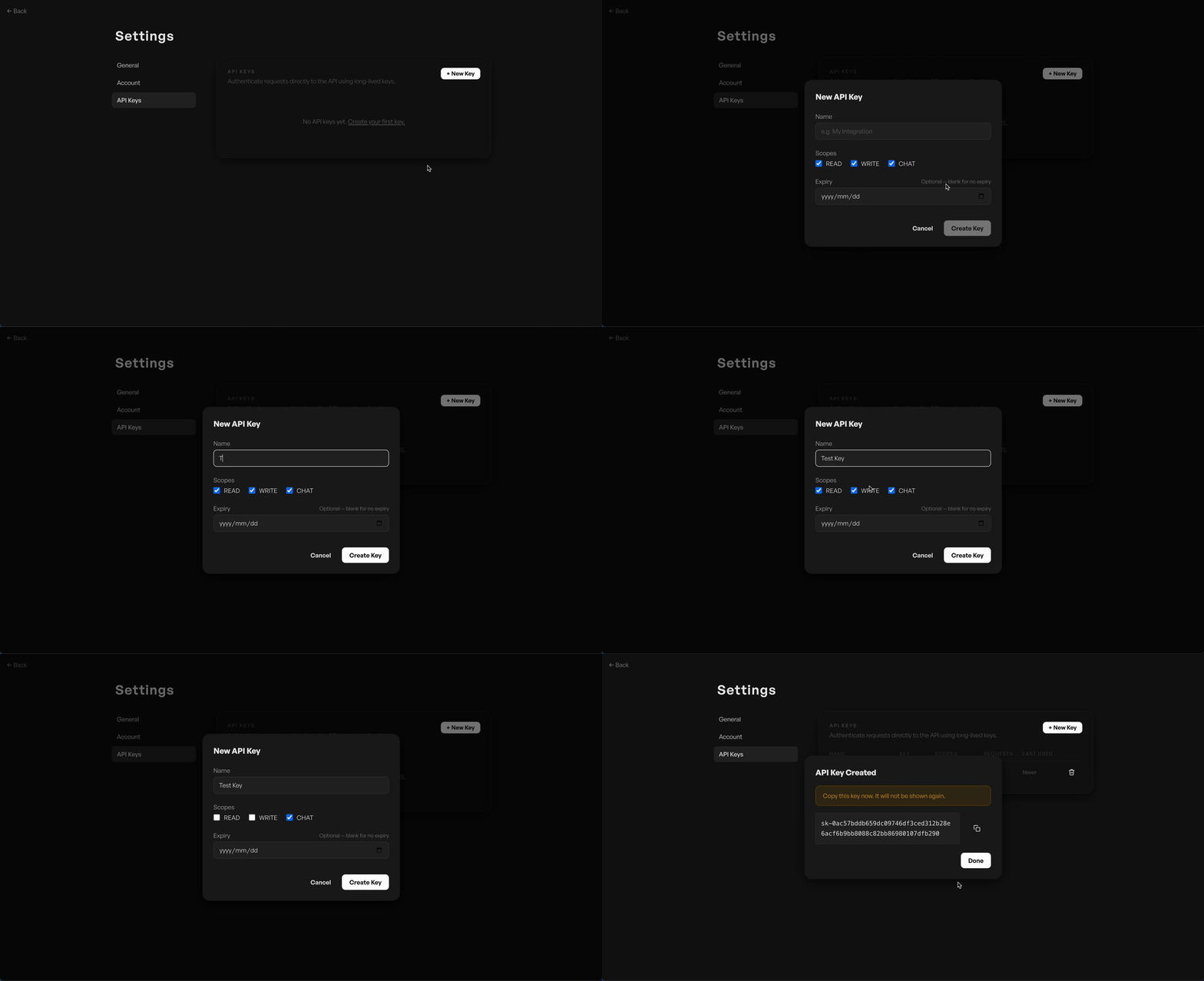
Your new key's raw value is shown once, immediately after creation. Copy it and store it somewhere safe (e.g. a secrets manager or .env file) — MOASIS only stores a hash of the key and cannot show it to you again. If you lose it, revoke the key and create a new one.
Use the key in the Authorization header of your API requests:
Authorization: Bearer sk-<your-api-key>Manage API Keys
The API Keys table shows each key's name, key prefix, scopes, request count, and last-used date.
- Rename a key — hover over the name and click the pencil icon, edit the value, then press Enter (or click the checkmark) to save.
- Scopes and the raw key value cannot be changed after creation — create a new key instead if you need different scopes.
Delete API Key
- Find the key you want to remove in the table and click the trash icon on the right.
- Confirm the revocation in the dialog.
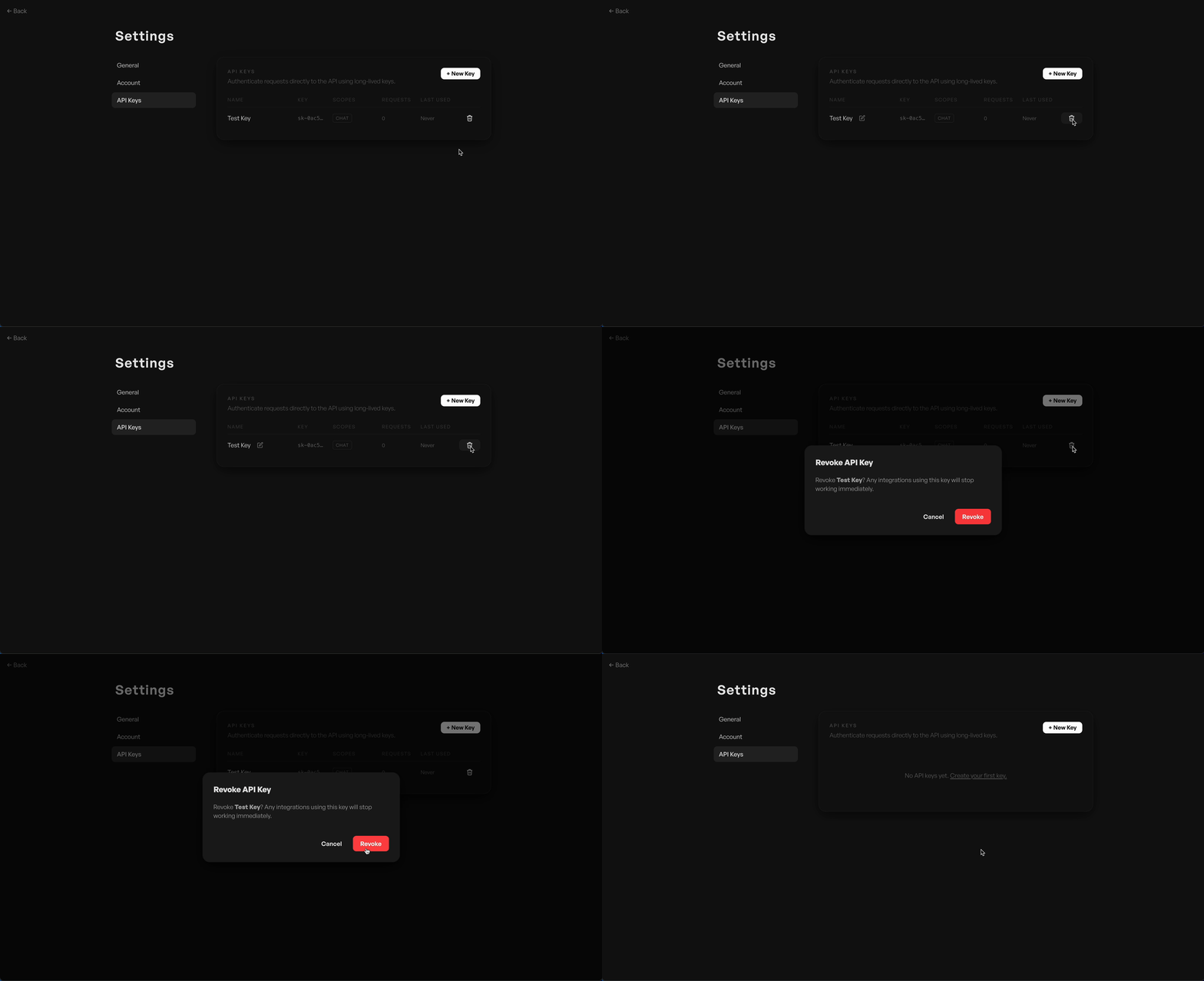
Revoking a key takes effect immediately — any integration still using it will start receiving 401 Unauthorized responses. This action cannot be undone.