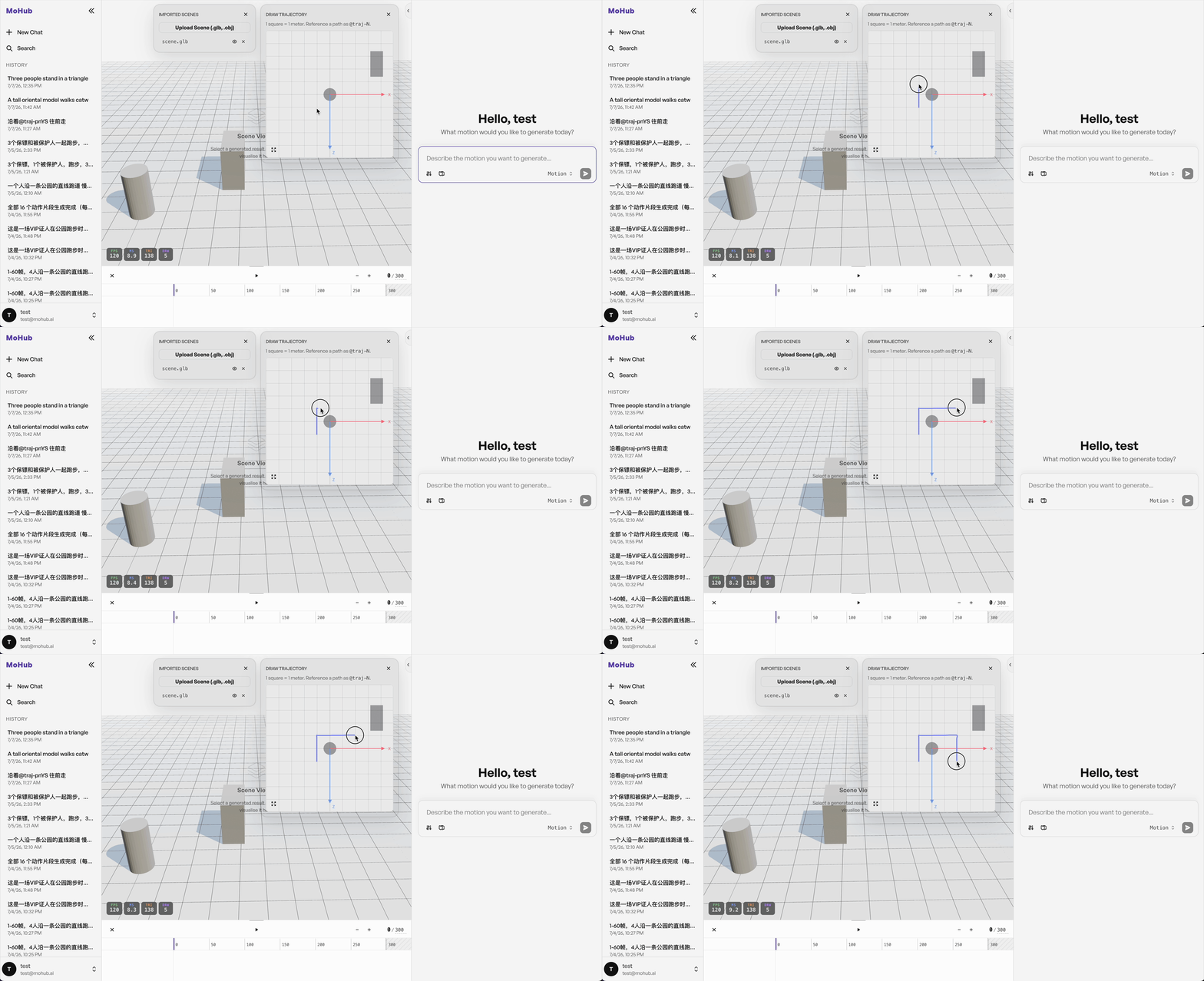
Trajectory Board
The Trajectory Board lets you draw a movement path by hand and then reference it directly in your prompt, so the generated motion follows the exact path you drew instead of whatever path the model infers from text alone.
Opening The Board
Open the Trajectory Board from either of two places:
- The Trajectory Board icon in the chat input toolbar.
- The floating Trajectory Board icon over the top-right of the 3D viewer.
Both open the same board.

Drawing A Trajectory
The board represents a 10 × 10 meter ground area (1 grid square = 1 meter). To draw a path, simply click-and-drag across the board — the path is captured freehand as you move the pointer, and is committed as a trajectory once you release.
You can draw multiple trajectories on the same board; each one is assigned its own color so they stay easy to tell apart. The board can also be expanded to a larger size for finer drawing.
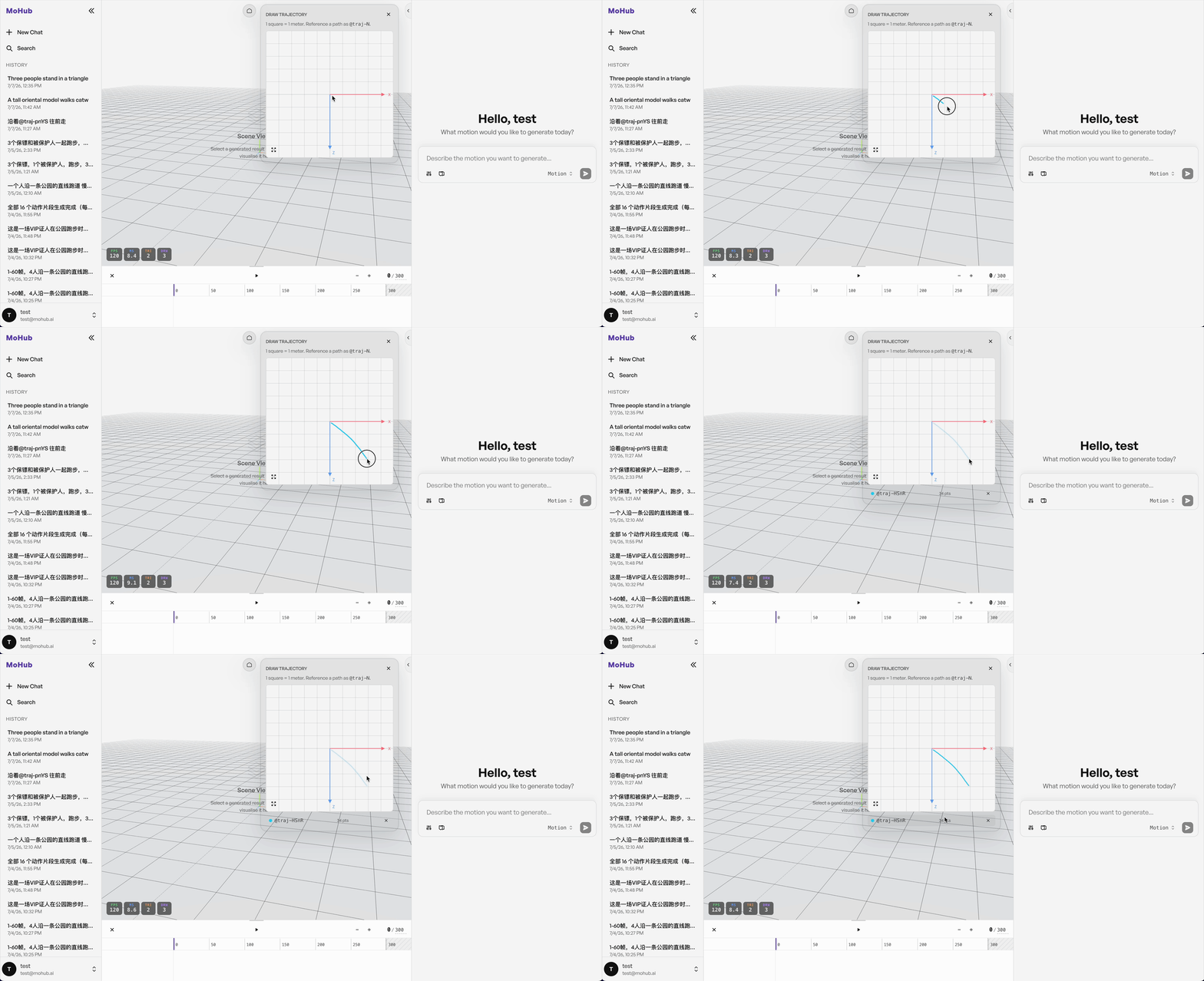
Below the canvas, every trajectory you've drawn is listed with its reference ID and point count, along with a delete button to remove just that one trajectory.
Referencing A Trajectory In Your Prompt
Every trajectory you draw gets an auto-generated ID, shown as @traj-xxxx (e.g. @traj-aXqP). To constrain a generated motion to follow that path, mention it in your prompt with @.
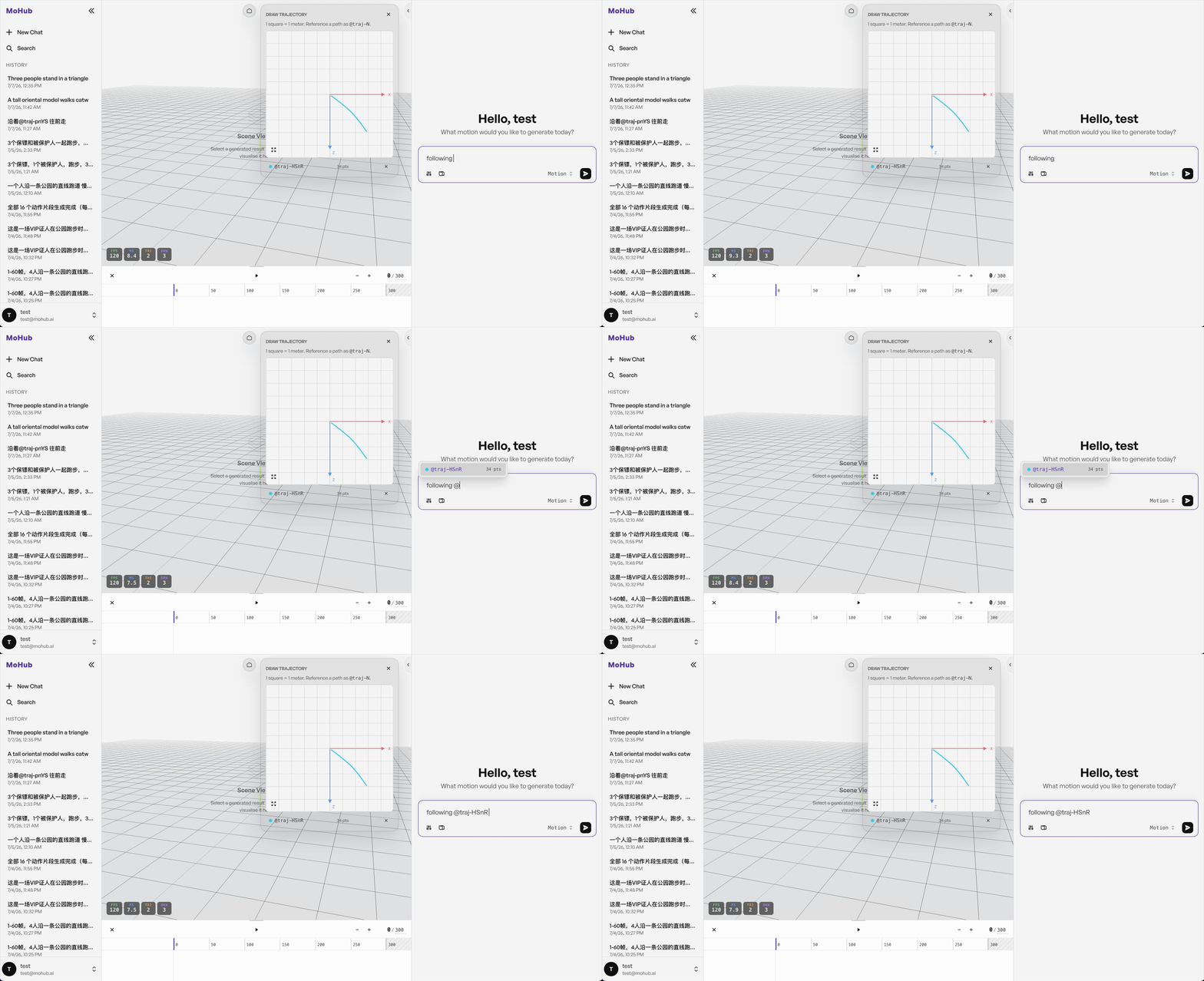
Typing @ in the chat input opens an autocomplete list of your drawn trajectories — pick one (or keep typing its ID) to insert the reference into your prompt. For example:
"Following the trajectory @traj-aXqP, a person walks forward."
Only trajectories actually mentioned with @ in your message are sent along with the prompt — trajectories you've drawn but not mentioned are not applied.
Drawing Against A Loaded Scene
If you want a generated motion to move through a specific environment — following a corridor, walking around furniture, staying inside a room — load that 3D scene into the viewer first. Once a scene is imported, the Trajectory Board displays a top-down snapshot of it as the board's background, in the same ground-plane coordinates as the 3D viewer. This lets you trace a trajectory that actually matches your scene's layout, rather than drawing on an empty grid.