Generate Motion Or Render It
MOASIS can operate in two modes. You choose the mode before sending your prompt, using the mode selector next to the "Send" button in the chat input toolbar.
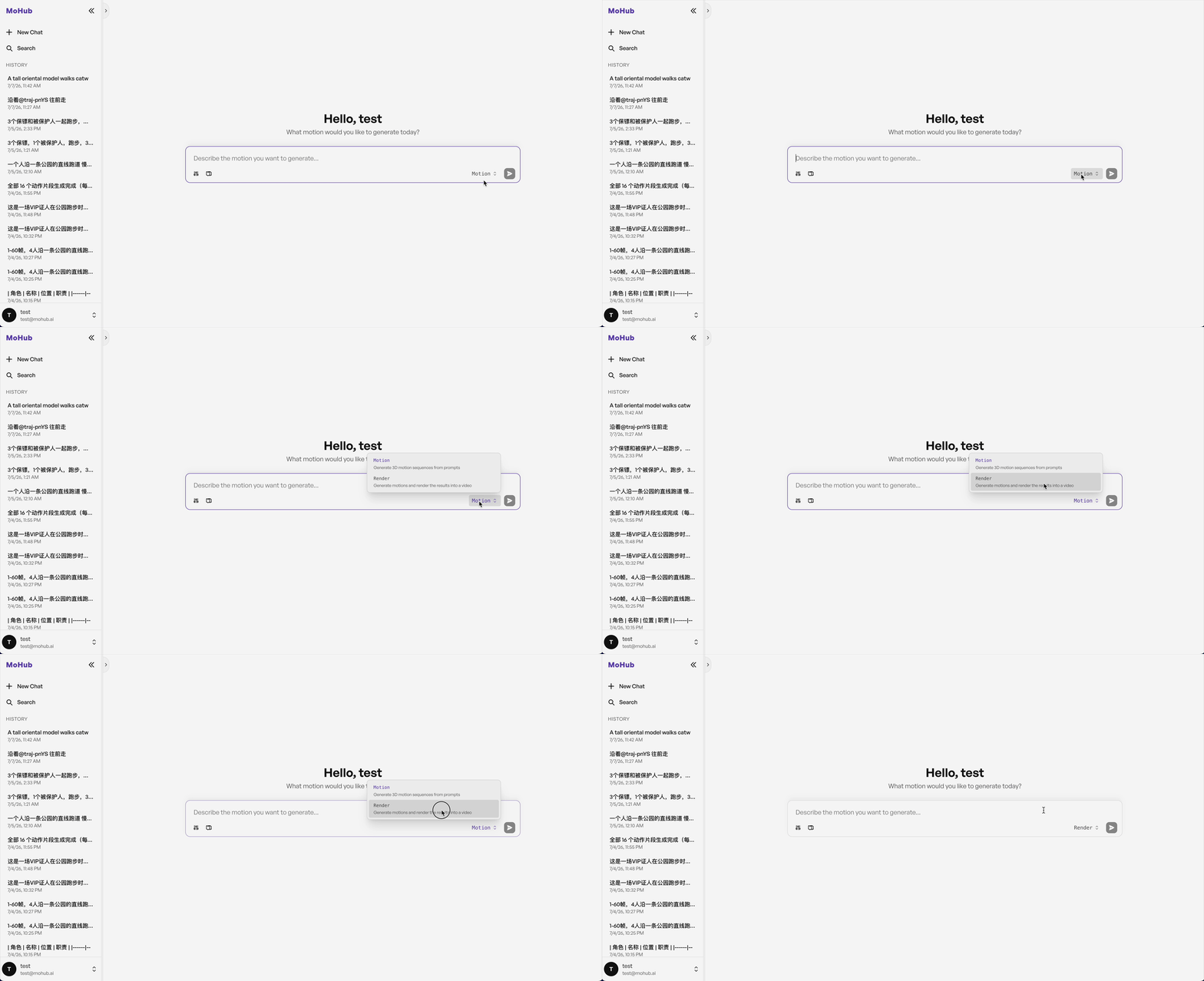
Motion Mode
Motion is the default mode. In this mode, MOASIS only generates the 3D human motion sequence described by your prompt. The result is a motion clip that you can open, play back, and inspect in the 3D viewer — no video is produced.
Use Motion mode when you only care about the movement itself (e.g. for downstream use in your own pipeline, or for iterating quickly on a prompt before committing to a render).
Render Mode
Render generates the motion the same way as Motion mode, but additionally renders the result into a video when appropriate. MOASIS looks at your prompt to decide whether a rendered video is needed:
- If your prompt only describes a movement (e.g. "a person walks forward and waves"), MOASIS produces the motion clip, same as
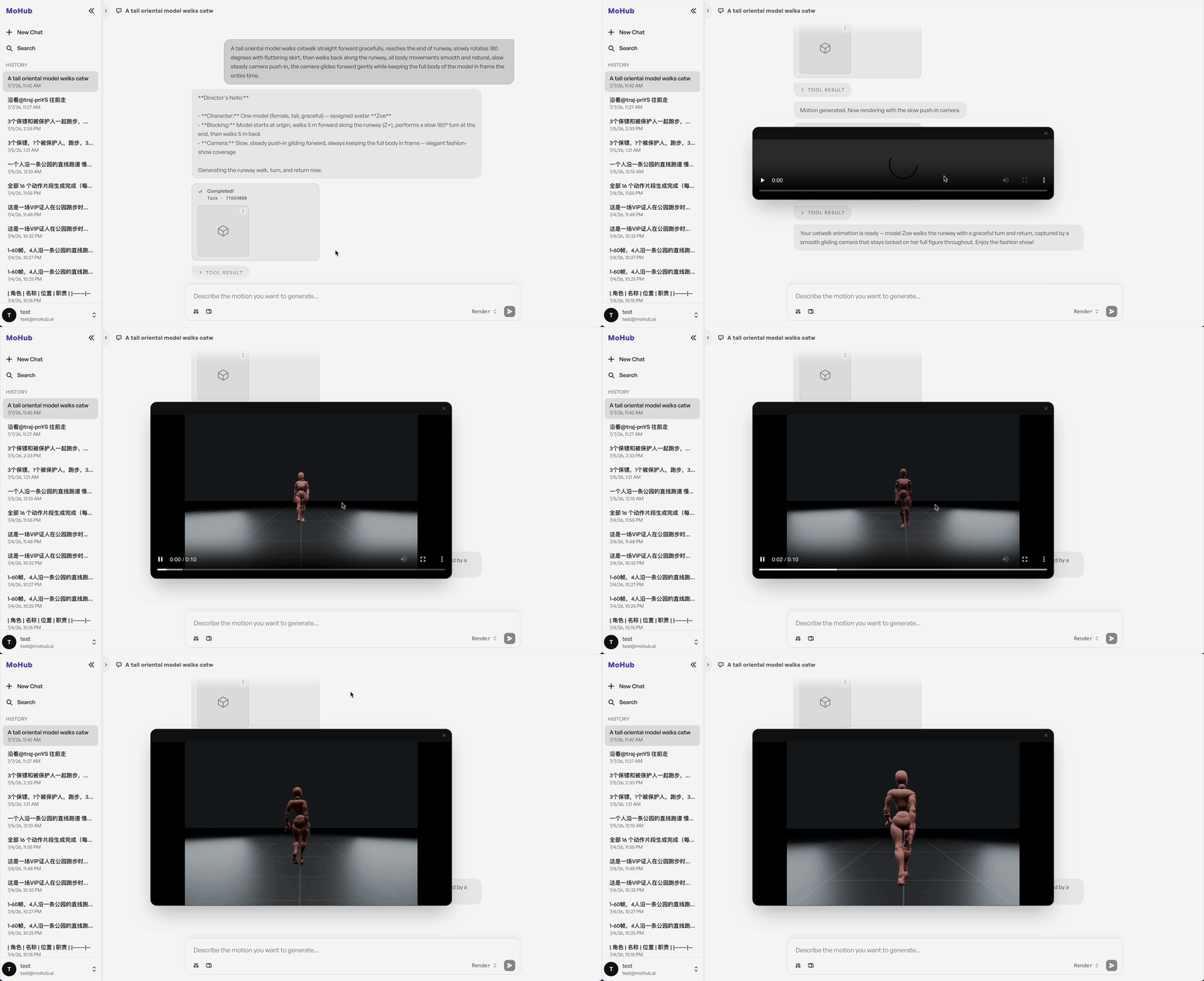
Motionmode. - If your prompt also describes how the shot should be filmed — for example a specific camera behavior such as a push-in, a tracking shot, or a rotating shot around the subject — MOASIS will automatically add a matching camera and render the motion into a video.
For example, the following prompt explicitly asks for a camera move, so Render mode will produce a rendered video with that camera push-in applied:
"A tall oriental model walks catwalk straight forward gracefully, reaches the end of runway, slowly rotates 180 degrees with fluttering skirt, then walks back along the runway, all body movements smooth and natural, slow steady camera push-in, the camera glides forward gently while keeping the full body of the model in frame the entire time."
Use Render mode whenever you want to describe both the motion and how it should be shot in a single prompt — you don't need to manually flag that a render is required, MOASIS decides this for you based on your description.